
Blog · WhatsApp
How to clear WhatsApp media on a Mac without losing your chats
WhatsApp for Mac keeps every photo, video and document in ~/Library/Group Containers/group.net.whatsapp.WhatsApp.shared/Message/Media, one folder per chat. Finder often counts it many times over, because WhatsApp shares repeated files on disk. Clear it chat by chat, with WhatsApp quit, from WhatsApp's own storage settings or with RefreshYourMac's WhatsApp Media row, which can move a chat's media to another drive and lets you copy it back later.
WhatsApp is one of the most common reasons a Mac runs short of space, and one of the most confusing. Every photo, video, voice note and document in your chats is saved on the Mac as well as on your phone, and family groups and busy chats add up quickly. Then Finder makes it look worse than it is.
Where WhatsApp keeps its media on a Mac
The WhatsApp app for Mac stores everything inside its own folder in your Library:
~/Library/Group Containers/group.net.whatsapp.WhatsApp.shared/The media is in Message/Media, with one folder per chat. The folders are named with WhatsApp’s
own chat IDs, long numbers ending in @g.us for groups or @lid and @s.whatsapp.net for
one-to-one chats, so in Finder you cannot tell which chat is which. Next to them are WhatsApp’s
databases, which hold your messages. Those are the part you never want to touch.
To look, open Finder, press Shift-Command-G and paste the path above.
Why Finder says it is bigger than it is
When the same photo or video turns up in several messages, for instance because it was forwarded
from chat to chat, WhatsApp saves each copy as an APFS clone: a file of its own that shares
the original’s space on disk until one of them changes. Finder’s Get Info, du in Terminal and
most cleaning apps add up every clone in full.
On the Mac we checked on 30 October 2026, the folder’s files added up to 15.7 GB and it actually took 1.4 GB. One chat alone held 909 copies of a single 9 MB video. Deleting files by hand on the strength of the bigger number would have freed a fraction of what it promised.
So before deciding what to clear, it is worth knowing what each chat really takes. RefreshYourMac counts each shared copy once, and says so on the row when the two numbers differ.
Don’t just delete the folders
Deleting media folders in Finder does free the space, but WhatsApp is not told. Your messages stay, and every photo and video in those chats shows as missing. Two other things can go wrong:
- WhatsApp may be writing to the folder. Quit it first, every time.
- Files can be shared between chats. Deleting one chat’s folder frees nothing for a file another chat still uses.
Option 1: WhatsApp’s own storage settings
Depending on your version, WhatsApp’s settings include a storage section that lists chats by size and lets you delete media from inside the app. This is the tidiest way to remove media you never want again, because WhatsApp knows what it has deleted.
It is worth turning off automatic media downloads there too, if your version offers it, so large files only arrive on the Mac when you open them.
Option 2: Move a chat’s media to another drive
If you would rather keep the photos and videos, just not on this Mac, move them. RefreshYourMac (from version 1.3.1) has a WhatsApp Media row that lists one item per chat:
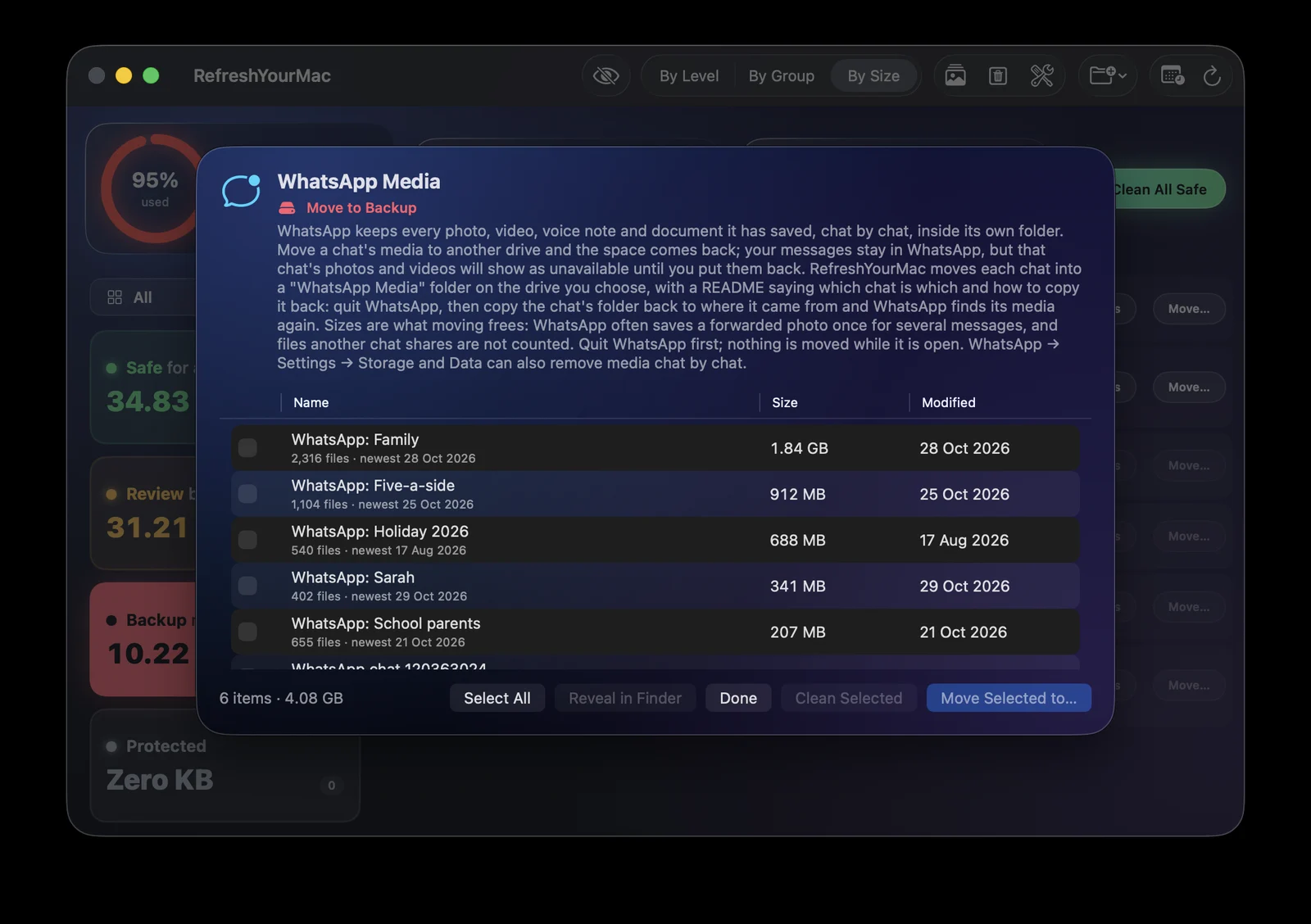
- Chats by name. RefreshYourMac reads the names from WhatsApp’s own database, so you see “Family” rather than a folder of numbers. A folder no message refers to any more is shown by its ID and says so.
- Sizes that mean something. Each chat’s size is what moving it frees: shared copies are counted once, and files another chat also uses are left out.
- Nothing moves while WhatsApp is open. A move copies first and removes second, and a photo arriving in between would be lost, so RefreshYourMac refuses until WhatsApp is quit.
- It can be undone. Moved chats go into a WhatsApp Media folder on the drive you choose,
under their own folder names, with a README listing which chat is which. To bring one back,
quit WhatsApp and copy its folder back into
Message/Media; WhatsApp finds the files by their path, so the photos reappear. - Clones stay clones. On an APFS drive, the copy keeps shared files shared, so the backup takes about the space it freed rather than the inflated total.
The row sits at the Move to Backup level, which is for your own data. It is never cleaned automatically, and its Clean button moves chats to the Trash rather than deleting them outright.
Which to choose
- You never want the media again: delete it from WhatsApp’s own settings.
- You want to keep it, just not here: move the chat to a backup drive with RefreshYourMac.
- You only want to see what is taking the space: the 7-day free trial shows WhatsApp’s real size alongside everything else on your Mac.
What to do next: see these numbers for your own Mac. Download Atzu Safe Data Cleaner free, or get it on the Mac App Store.
What it costs to have an app do this
| Atzu Safe Data Cleaner | CleanMyMac | MacKeeper | |
|---|---|---|---|
| Pay once | $24.99 | €119.95 on MacPaw’s store; $89.99 for CleanMyMac X on the Mac App Store | subscription only |
| Yearly | $14.99 a year, first 7 days free | $39.99/yr on the Mac App Store; €39.95/yr on MacPaw’s store | €71.40 for the first year, 1 Mac. Their page shows it against a €119.40 list price |
| Monthly | $1.99 a month | $9.99/mo | €10.95/mo |
| Account needed | No | Yes | Yes |
Both versions' yearly plans start with 7 days free. CleanMyMac and MacKeeper prices read from their own pages and the Mac App Store on 27 October 2026; the full comparison is at Atzu Safe Data Cleaner vs CleanMyMac and MacKeeper.