
Blog · Chrome
Chrome's AI model is taking gigabytes on your Mac. Here's how to remove it
Chrome keeps an on-device AI model, Gemini Nano, in ~/Library/Application Support/Google/Chrome/OptGuideOnDeviceModel, and it can take over 4 GB. Turn off On-device AI in Chrome → Settings → System so it is not downloaded again, quit Chrome, then delete what is left, in Finder or with RefreshYourMac's Google Chrome AI Model row.
If your Mac is short of space and you use Chrome, look in Chrome’s own folder before anywhere else. Recent versions of Chrome download an AI model, Google’s Gemini Nano, and keep it on your Mac so some features can run without sending anything to Google. Nothing asks you first, and the model is big: on the Mac we checked on 30 October 2026 it took 4.27 GB, with two smaller models beside it bringing the total to about 4.5 GB.
Where it is
All of it lives inside Chrome’s profile folder:
~/Library/Application Support/Google/Chrome/- OptGuideOnDeviceModel — Gemini Nano itself, almost all of it a single file called
weights.bin. This is the large one. - OptGuideOnDeviceClassifierModel and optimization_guide_model_store — smaller models Chrome uses for other built-in features, around 100 MB each.
To see whether you have it, open Finder, press Shift-Command-G, paste the path above and look
for those folders. In Chrome itself, the page chrome://on-device-internals reports whether the
model is installed.
What it is for
Gemini Nano powers AI features that run inside the browser, such as scam warnings, and the writing, summarising and translating tools that websites and extensions can ask Chrome for. Running on your Mac means those requests stay on your Mac. If you use those features, keep the model. If you don’t, it is several gigabytes of disk doing nothing.
Why deleting the file is not enough
The model is not something Chrome downloads once. While the feature is switched on, Chrome checks
that the model is there and fetches it again when it is not, so deleting weights.bin on its own
frees the space for a while and then loses it again. The order matters: switch the feature off
first, then clear what is left.
How to remove it so it stays gone
1. Turn off On-device AI in Chrome
Open Chrome’s three-dot menu, choose Settings, then System, and turn off On-device AI. Google has said the model is no longer downloaded or updated once this is off, and some reports say Chrome removes the large file itself when you turn it off.
The setting may not be there. Chrome rolls features out gradually, does not offer them on every Mac, and a browser managed by a company or school may hide it. Without it, you can still free the space, but Chrome may download the model again later.
2. Quit Chrome
Choose Chrome → Quit Google Chrome, or press Command-Q. Closing the window is not enough, because Chrome keeps running in the background.
3. Delete what is left
In Finder, go to the folder above and move OptGuideOnDeviceModel to the Trash, then empty the Trash. The two smaller folders can go too; Chrome rebuilds what it still needs.
Leave everything else in that folder alone. It is your Chrome profile: saved passwords, the cookies that keep you signed in, history, bookmarks and extensions.
With RefreshYourMac
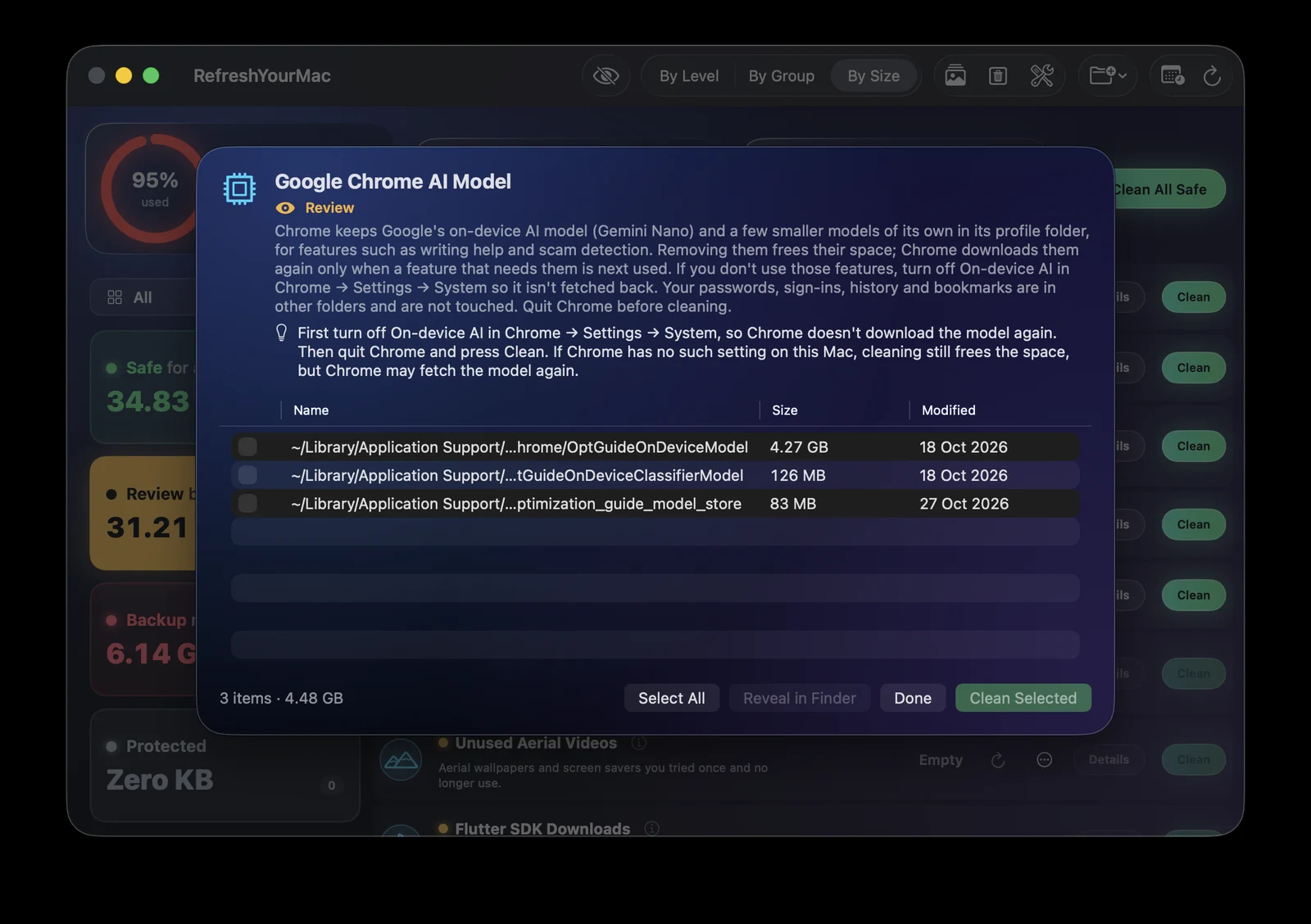
RefreshYourMac lists these three folders as their own row, Google Chrome AI Model, separate from the rest of Chrome’s profile, which it never touches. The row shows how much space they take on your Mac and, from version 1.3.5, gives the steps above before you clean: turn off On-device AI, quit Chrome, then press Clean. Nothing else in Chrome’s folder is listed or removed.
It sits at the Review before deleting level rather than Safe for auto removal, because removing it switches off features some people use, and because it only stays gone if you do step one first. The 7-day free trial shows how much it takes on your Mac before you decide.
Further reading
- Android Authority’s guide, including what to do if your Chrome has no On-device AI setting: how to disable Chrome’s Gemini Nano and delete weights.bin
- Hongkiat on how the model gets there in the first place: Chrome may be quietly storing a multi-GB AI model
What to do next: see these numbers for your own Mac. Download Atzu Safe Data Cleaner free, or get it on the Mac App Store.
What it costs to have an app do this
| Atzu Safe Data Cleaner | CleanMyMac | MacKeeper | |
|---|---|---|---|
| Pay once | $24.99 | €119.95 on MacPaw’s store; $89.99 for CleanMyMac X on the Mac App Store | subscription only |
| Yearly | $14.99 a year, first 7 days free | $39.99/yr on the Mac App Store; €39.95/yr on MacPaw’s store | €71.40 for the first year, 1 Mac. Their page shows it against a €119.40 list price |
| Monthly | $1.99 a month | $9.99/mo | €10.95/mo |
| Account needed | No | Yes | Yes |
Both versions' yearly plans start with 7 days free. CleanMyMac and MacKeeper prices read from their own pages and the Mac App Store on 27 October 2026; the full comparison is at Atzu Safe Data Cleaner vs CleanMyMac and MacKeeper.